




Sales teams waste hours on manual tasks like setting up workspaces in Microsoft Teams. This slows down collaboration, delays sales cycles, and reduces productivity. Automating this process eliminates the hassle. Here’s the solution: Salesforce events can trigger automatic creation of Teams workspaces, complete with pre-configured channels, templates, and tasks.
Key Takeaways:
- Automation saves time: Salesforce events (like Opportunity stage changes or Case escalations) instantly create Teams workspaces.
- Everything is ready to go: Channels, files, and tasks are preloaded based on templates.
- Streamlined collaboration: No more switching between platforms or waiting for manual setup.
- Lifecycle management: Workspaces are archived automatically when deals close or cases resolve.
Tools like nFlow make this process effortless by connecting Salesforce and Microsoft Teams, ensuring teams can focus on selling and resolving issues instead of tedious admin work.
How Salesforce Events Trigger Teams Workspace Creation
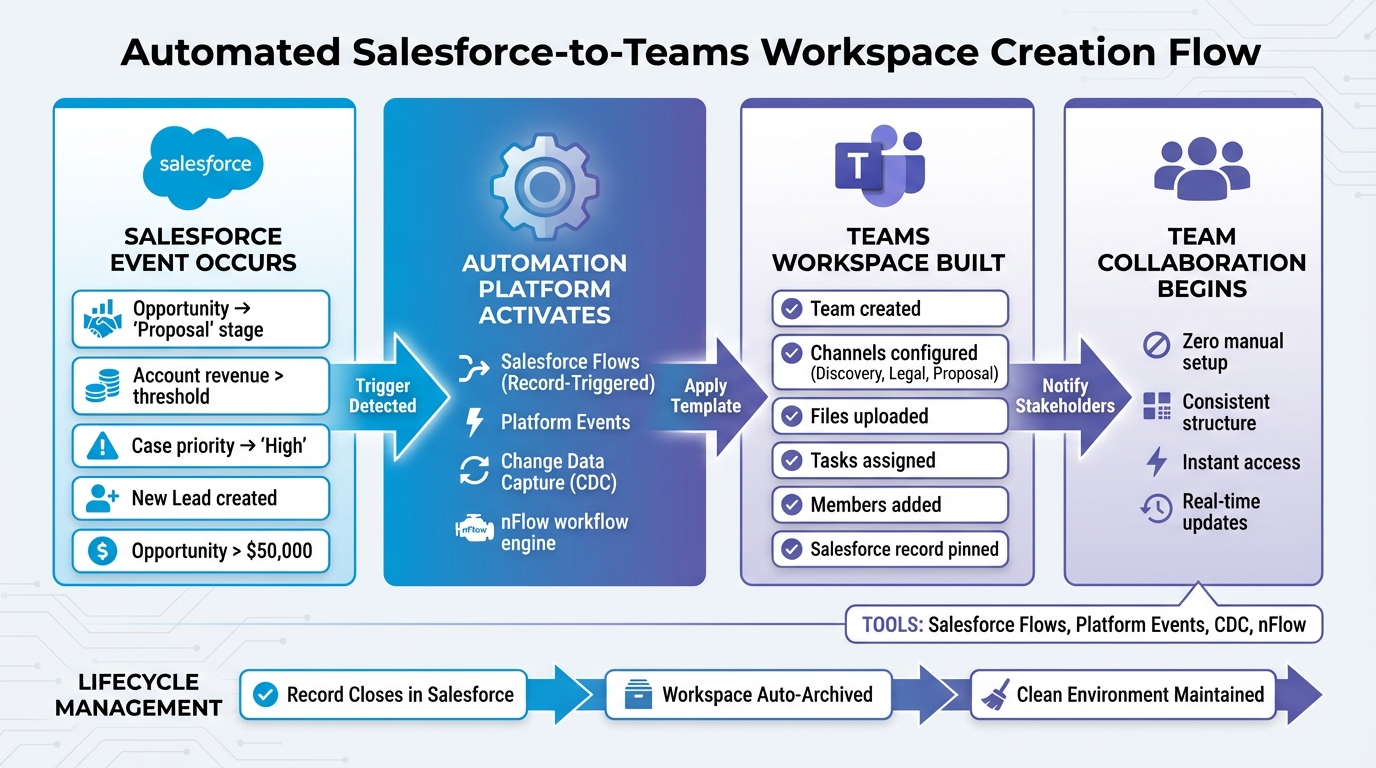
How Salesforce Events Auto-Create Microsoft Teams Workspaces – Automated Workflow Process
The magic behind workspace automation lies in a straightforward idea: Salesforce events serve as triggers. Whenever specific actions occur in Salesforce – like creating a new Opportunity, updating an Account, or escalating a Case – these events can automatically launch workflows that set up or update a Microsoft Teams workspace. This automation takes care of tasks like creating channels, uploading files, and assigning responsibilities, all directly linked to CRM events.
For instance, imagine an Opportunity moves to the "Proposal" stage. Automation can immediately spin up a dedicated team in Microsoft Teams, establish channels for Discovery, Legal, and Proposal discussions, and notify the relevant stakeholders – all without requiring manual intervention. This trigger-based system forms the backbone of efficient workspace creation.
Common Salesforce Events Used as Triggers
Not every change in Salesforce warrants creating a workspace. The most effective triggers are tied to moments when collaboration across teams becomes essential. Examples include:
- Opportunity stage changes: For instance, when an Opportunity shifts from Qualification to Proposal.
- Account updates: Such as when a customer’s revenue surpasses a certain threshold or their status changes to "Active."
- Case escalations: Like when a Case priority is upgraded to "High" or an SLA breach occurs.
- New record creation: This could include Leads or custom objects.
Triggers can also be fine-tuned based on specific field values. For example, you might set automation to create workspaces only for Opportunities exceeding $50,000, Accounts categorized under the Enterprise segment, or Cases tied to specific product lines. This approach prevents Teams from becoming cluttered with unnecessary workspaces and ensures automation focuses on high-impact scenarios. Tools like Salesforce Flows, particularly "after-save Record-Triggered Flows", can be configured to detect these conditions and pass the necessary data to your automation system.
How Workflow Automation Tools Work
Basic integrations between Salesforce and Teams often stop at syncing data – like displaying Salesforce records as tabs or sending notifications. Workflow automation platforms, however, take things to the next level by building out the entire workspace structure.
Take nFlow, for example. It uses Salesforce events to execute comprehensive workflows that define every aspect of a workspace: which channels to create, what files to upload, which tasks to assign, and who needs to be notified. When nFlow identifies a relevant Salesforce event, it applies a pre-defined workflow template to set up everything dynamically. It can create channels, post messages, upload file templates from your playbook, and generate tasks – all while pulling in data directly from the Salesforce record.
This process ensures that every workspace is consistent, fully prepared, and ready to support the team’s efforts, whether it’s for a new deal, a key account, or a critical case.
Setting Up Salesforce and Teams for Automation
To enable automation between Salesforce and Microsoft 365, you’ll need to configure both platforms with the right settings and licenses. This process requires administrative access to both systems, as well as the appropriate permissions and licenses.
Salesforce Setup Requirements
For automation, you’ll need Salesforce Lightning Experience paired with a Professional, Enterprise, or Unlimited license for Sales and Service Clouds. Admin permissions are crucial for configuring integrations and managing automation workflows.
Salesforce offers two key tools for triggering workflows when records change: Platform Events and Change Data Capture (CDC). Here’s how they work:
- Platform Events: These let you define custom events with specific fields, such as
OrderId__c,Status__c, orEmail__c. Workflows are triggered when certain conditions tied to these fields are met. - Change Data Capture (CDC): This tool publishes changes to records – like create, update, delete, or undelete – for both standard and custom objects, such as Account or Opportunity.
Salesforce Architects emphasize the importance of these tools, stating:
"Platform events and Change Data Capture (CDC) are the preferred mechanisms for publishing record and field changes that need to be consumed by other systems".
When setting up automation, choose key Salesforce fields (e.g., Stage or Close Date) as triggers. Also, decide which data should be visible in Teams, ensuring sensitive fields are only accessible to authorized users. If you’re using the basic Salesforce app for Teams, activate the "Teams Integration" feature in Salesforce Setup and assign the ‘User For Teams Integration Permission Set’ to the appropriate users.
Microsoft Teams and 365 Setup Requirements
For Microsoft Teams, you’ll need an Office 365 Work, School, or higher account with relevant features enabled, along with admin permissions in Teams. Basic integration tools provide limited functionality, so more advanced setups are required for creating robust workspace structures.
To automate workspace creation, use predefined Teams templates that align with your sales or service playbooks. These templates should include:
- Channel structures
- Folders
- File templates
- Governance settings
Start by creating an initial team in Microsoft Teams with standard and private channels. Pre-load this team with essential files, such as guidelines, playbooks, or contract templates, and integrate apps like Planner or SharePoint. Additionally, define Teams governance settings – such as membership rules and privacy policies – early on to maintain consistency across workspaces.
How nFlow Handles Setup
Setting up these integrations manually can involve numerous steps, but nFlow simplifies the process by consolidating configurations into a seamless workflow. Once your environments are set up, nFlow transforms them into dynamic, coordinated workspaces.
nFlow connects directly to Salesforce and Microsoft 365 using Salesforce OAuth and Azure AD SSO, giving users secure, single-sign-on access across all platforms. Its no-code visual builder allows operations and business teams to define automation rules, naming conventions, and workspace behaviors without needing custom development.
When a Salesforce event is triggered, nFlow applies your pre-designed playbook templates to automatically create a complete workspace. This includes teams, channels, folders, file templates, tasks, and lists, all while adhering to your existing Microsoft 365 governance settings. Plus, nFlow supports sandbox-to-production mapping, enabling you to test automation rules in Salesforce sandboxes before deploying them live. This feature minimizes risks when adjusting configurations and ensures a smoother rollout process.
Building and Automating Teams Workspaces
Once you’ve set up Salesforce and Microsoft 365, the next step is to create workspace structures that align with your sales and service workflows. Automating their creation based on Salesforce events can save time and ensure consistency. By using playbook templates, you can maintain uniformity from the initial setup to ongoing updates.
Building the Teams Workspace Structure
Start by mapping your existing playbooks to Teams workspace templates. These workspaces should reflect the natural flow of information across departments while remaining straightforward. Ideally, users should spend most of their time – about 80% – in a primary workspace, with minimal navigation between two or three additional workspaces.
For example, a Sales Deal Room template might include standard channels like Discovery, Proposal, and Legal & Security. You can also add private channels for internal strategy discussions. Pre-load these channels with resources such as proposal templates, action plans, and QBR documents. To streamline task management, integrate Microsoft Planner as a tab and pin the Salesforce Opportunity record directly in the main channel. For Key Account Management workspaces, structure the channels around critical areas like account planning, executive engagement, and renewal strategy. Include pre-built guidelines and set permissions for account team members.
To make workspace names intuitive and searchable, use consistent naming conventions that incorporate dynamic Salesforce data. For instance, names like "[Account Name] – Deal Room" or "Case #[Case Number] – [Subject]" provide clarity and make it easy to locate specific workspaces. Once the templates are ready, automation can bring them to life in Teams.
Automating Workspace Creation and Updates
Automation platforms bridge the gap between Salesforce and Teams, eliminating the need for manual setup. When a Salesforce record meets specific criteria – such as an Opportunity reaching the "Proposal" stage or an Account being marked as strategic – automation workflows are triggered immediately.
Using tools like nFlow, playbook templates can automatically generate fully configured workspaces in Teams based on Salesforce events. For example, when a high-value Opportunity is created, nFlow sets up a Deal Room with pre-configured channels, folders, templates, and tasks. It also assigns the Opportunity owner and account team members, pins the relevant Salesforce record for quick access, and sends notifications in Teams whenever key fields like stage, close date, or amount are updated.
Automation doesn’t stop at the initial setup. As an Opportunity progresses, nFlow can create new channels for specific phases, replicate tasks into Microsoft Planner with due dates synced from Salesforce, and provide real-time updates. This ensures that every workspace – whether for a deal, account, or case – follows the same structure and contains the necessary content. By relying on Salesforce events rather than manual input, the process becomes seamless and efficient.
Comparison of Automation Methods
Different methods for automating workspace creation offer varying levels of efficiency and consistency. Here’s how they stack up:
| Method | Workspace Creation | Template Consistency | Salesforce Integration | Lifecycle Management |
|---|---|---|---|---|
| Manual Process | Workspaces and channels are created individually by team members | Inconsistent; depends on individual execution | Requires manual pinning of records as tabs | Archiving is done manually when deals close |
| Basic Connectors | Teams are created manually, with limited automation (e.g., notifications) | Templates are not enforced | Can post updates and mention records | No automated lifecycle management |
| nFlow Automation | Fully automated based on Salesforce events | Consistent playbook templates | Automatically pins records, assigns members, and provides real-time updates | Automatically archives workspaces when records close |
The standout feature of nFlow is its ability to not just surface Salesforce data in Teams but to completely build and manage workspace structures. From teams and channels to folders, templates, and tasks, nFlow handles it all, making it an invaluable tool for sales and service teams.
sbb-itb-95f1422
Managing Workspace Lifecycle and Governance
Setting up automated workspace creation is just the beginning when it comes to keeping your Teams environment organized. Without proper lifecycle management, outdated workspaces can pile up, creating unnecessary clutter. By leveraging Salesforce events, organizations can manage workspaces from creation to archiving, all while staying compliant with Microsoft 365 governance policies.
Using Salesforce Events for Workspace Lifecycle
Salesforce events go beyond simply triggering workspace creation – they can also handle the entire lifecycle. For instance, when an Opportunity closes, a Case is resolved, or an Account becomes inactive, the related Teams workspace can be automatically archived or deleted. Take this example: when an Opportunity is marked as "Closed Won" or "Closed Lost", the corresponding Sales Deal Room is archived. This ensures critical data is preserved but removes it from active use. Similarly, when a support Case is resolved, its workspace is archived to prevent outdated spaces from lingering. This type of automation ensures a clean environment while supporting governance efforts.
How nFlow Handles Governance and Compliance
nFlow simplifies governance by integrating with Microsoft 365 policies and relying on Salesforce-driven controls to prevent unauthorized workspace creation. Each workspace created by nFlow adheres to consistent naming conventions derived from Salesforce data, eliminating the need for manual oversight. Access permissions are also automated – if an Opportunity’s owner changes in Salesforce, the corresponding Teams workspace adjusts accordingly. Once records are closed, workspaces are archived automatically, keeping your Teams setup clean while maintaining essential historical data. By aligning with your Microsoft 365 governance framework, nFlow removes the need for separate compliance processes, streamlining the entire lifecycle.
Comparison of Lifecycle Management Methods
Here’s a breakdown of how different approaches handle workspace lifecycle management:
| Method | Workspace Archiving | Ownership Management | Naming Enforcement | Administrative Effort |
|---|---|---|---|---|
| Manual Management | Admins manually archive teams when notified | Ownership updates are handled manually | Relies on users following established guidelines | High – requires constant monitoring |
| Native Salesforce & Teams Integration | No automated archiving | No automated ownership sync | No enforced naming conventions | Medium – some manual cleanup required |
| nFlow Automation | Automatically archives workspaces when records close | Syncs ownership changes directly from Salesforce | Enforces naming conventions automatically | Low – runs autonomously with policy-based rules |
The contrast is clear. Manual management demands significant administrative effort to track and archive outdated workspaces. On the other hand, nFlow automates these tasks by tying them to Salesforce record statuses, keeping your Teams environment organized and aligned with actual business needs from the start.
Conclusion: Better Execution with Salesforce-Driven Teams Automation
Automating the creation of Teams workspaces brings consistency to how deals, accounts, and cases are managed. By using standardized playbooks with pre-loaded resources, you eliminate the variability that comes with manual setup. This structured approach ensures that sales reps, customer success managers, and service teams operate in an environment where nothing slips through the cracks. The result? Smooth collaboration across departments.
When everyone has access to the relevant Salesforce record directly within Teams, the need to switch between platforms or dig through emails is eliminated. This streamlined access benefits marketing, legal, and finance teams – even those without Salesforce licenses – who play a crucial role in closing deals and resolving cases. Automatically creating Teams workspaces linked to Salesforce records (with the record pinned for quick reference) ensures that everyone is aligned and informed.
nFlow takes this to the next level by embedding operational playbooks into your workflows. For example, when an Opportunity reaches a certain stage or a Case is escalated, nFlow uses consistent templates to create workspaces, add the necessary team members, and send smart notifications. This removes the burden from individual team members to remember the process. Instead, the structure is built into the system from the start, ensuring every deal room follows the same framework. Additionally, nFlow automates workspace lifecycle management by creating workspaces instantly, updating ownership as needed, and archiving closed records – all with minimal admin effort.
FAQs
What triggers the creation of a Teams workspace from Salesforce events?
When certain Salesforce events occur – like updates to opportunities, accounts, cases, or custom objects – Teams workspaces are automatically set up based on the rules you’ve defined. These criteria ensure that workspaces are created exactly when and where they’re needed.
With a platform like nFlow, this automation doesn’t stop at basic integration. nFlow not only creates or connects Teams workspaces but also preloads them with folders, templates, tasks, and checklists. Plus, it pins relevant Salesforce records directly in Teams, giving your sales and service teams a consistent structure and a more seamless way to collaborate.
How does nFlow simplify creating Teams workspaces from Salesforce events?
nFlow simplifies the creation of Microsoft Teams workspaces by automatically converting Salesforce events – such as updates to opportunities, accounts, or cases – into well-organized collaboration hubs. Once your preset rules are triggered, nFlow takes care of setting up Teams with the appropriate channels, folders, file templates, and tasks, all aligned with your playbook.
To make things even easier, nFlow pins the relevant Salesforce record directly within Teams, giving your team quick access to essential details. By delivering smart notifications and maintaining consistent workspace organization, nFlow cuts down on time-consuming manual setup, allowing your sales and service teams to work more efficiently and stay focused on what matters most.
How does nFlow keep Teams workspaces organized and compliant with company policies?
nFlow helps keep Teams workspaces tidy and compliant by automatically setting up consistent, standardized spaces based on your Salesforce playbooks. Each workspace comes pre-filled with the right folders, templates, tasks, and structure, ensuring everything aligns with your Microsoft 365 governance policies.
It also applies lifecycle rules and ensures a uniform setup across deal rooms, account spaces, and case rooms. This allows your team to concentrate on getting work done without worrying about compliance or staying organized.
Leave a Reply