




Sales teams waste hours switching between tools like Salesforce and Microsoft Teams, which disrupts workflows and leads to inefficiencies. Integrating Salesforce with Teams solves this problem by turning static sales playbooks into dynamic, collaborative workspaces. Here’s what this integration offers:
- Centralized Workspaces: Automatically create Teams channels linked to Salesforce records (e.g., Opportunities, Accounts).
- Streamlined Collaboration: Pre-set templates, tasks, and documents ensure every deal follows a consistent process.
- Automation: Tools like nFlow automate workspace creation based on Salesforce triggers, saving time and reducing manual setup.
- Real-Time Updates: Salesforce data is visible directly in Teams, keeping everyone aligned without app-switching.
- Security: Admins can control data visibility and permissions to protect sensitive information.
This integration reduces tool fatigue, improves collaboration, and ensures consistent execution of sales playbooks. With automation, your team can focus on closing deals instead of managing tools.
Prerequisites: What You Need to Connect Salesforce and Teams
Salesforce and Microsoft Teams Setup Requirements
To link Salesforce with Microsoft Teams and streamline your sales workflows, you’ll need the right licenses and admin permissions for both platforms.
For Salesforce, integration requires a Sales or Service Cloud subscription in Enterprise, Performance, or Unlimited Editions. On the Microsoft side, Teams licenses are typically included in most Microsoft 365 packages.
Once you have the licenses, admins for both platforms must activate the integration. In Salesforce, this involves enabling Teams Integration under the Setup menu, agreeing to the storage terms, and assigning the "User for Teams Integration" permission set. In Teams, admins should install the Salesforce app via the Admin Center and adjust the Teams permission policies as needed.
The good news? The Salesforce add-on for Teams doesn’t come with any extra fees. To get started, install the Salesforce app in Teams using OAuth authentication through Salesforce connected apps. If you’re setting up API-driven integrations, create a dedicated Salesforce integration user. This user should have the appropriate license and the "Minimum Access – API Only Integrations" profile.
With the setup complete, it’s essential to address security protocols to ensure safe data sharing between systems.
Security and Compliance Considerations
After setting up the integration, the next step is to secure the data exchanged between Salesforce and Teams. Proper security measures are critical for maintaining operational integrity.
Admins can control how much Salesforce data is visible in Teams. For tighter security, you can restrict it to just the object type. Alternatively, you can allow more detailed record information for better usability.
If you’re using integration users for API connections, configure Login IP Ranges on their profile. This limits access to the external application provider’s approved IP ranges. To maintain security, apply the principle of least privilege. Grant only the necessary object and field permissions through custom permission sets and permission set groups. For custom integrations, such as those that send notifications or manage Teams workspaces programmatically, you may need specific Microsoft Graph API permissions like "Team.ReadBasic.All", "TeamSettings.Read.All", and "TeamSettings.ReadWrite.All." Admin consent is required for these permissions.
Before rolling out any changes to production, always test your configurations in a sandbox environment. This ensures your security settings function correctly without risking sensitive data or disrupting your team’s workflow.
Salesforce and Microsoft Teams Integration
Turning Sales Playbooks into Salesforce and Teams Structures
Salesforce Playbook Elements to Microsoft Teams Workspace Components Mapping
Building Playbooks in Salesforce
To effectively organize your sales playbook in Salesforce, use a combination of records, fields, and automation. Start by setting up your standard objects – such as Leads, Accounts, Contacts, Opportunities, and Cases – to align with the stages of your playbook. Custom fields like "Lead Source" or "Opportunity Stage" can act as triggers for automated workflows.
Automation is where your playbook truly takes shape. Salesforce Flows can be configured to automatically initiate the next step whenever a record is created or updated. For instance, when a Lead’s status changes to "Qualified", a Flow can create a corresponding Opportunity and assign it to the right sales representative. By using conditional logic (like If/Else statements based on field values), these automated processes ensure that your team consistently follows the playbook without needing to manually intervene.
Once your automated playbook is set up in Salesforce, the next logical step is to implement these structures within Teams for better collaboration.
Creating Teams Workspaces for Playbook Scenarios
Transforming Salesforce playbook elements into Teams workspaces allows for seamless execution of workflows.
For each playbook scenario, assign a dedicated Teams workspace. For example, in the case of deal rooms, you could create a specific team with channels that correspond to key deal stages. Pin the relevant Salesforce Opportunity record within these channels to enable real-time updates and inline editing.
For account rooms, structure your channels around critical customer lifecycle stages, such as Onboarding, Quarterly Business Reviews, and Support Escalations. Automated workflows can further enhance these spaces, such as routing leads by "Lead Source" into designated channels. This ensures every message includes the essential lead details for easy access and action.
Comparison: Salesforce Playbook Elements vs. Teams Workspace Components
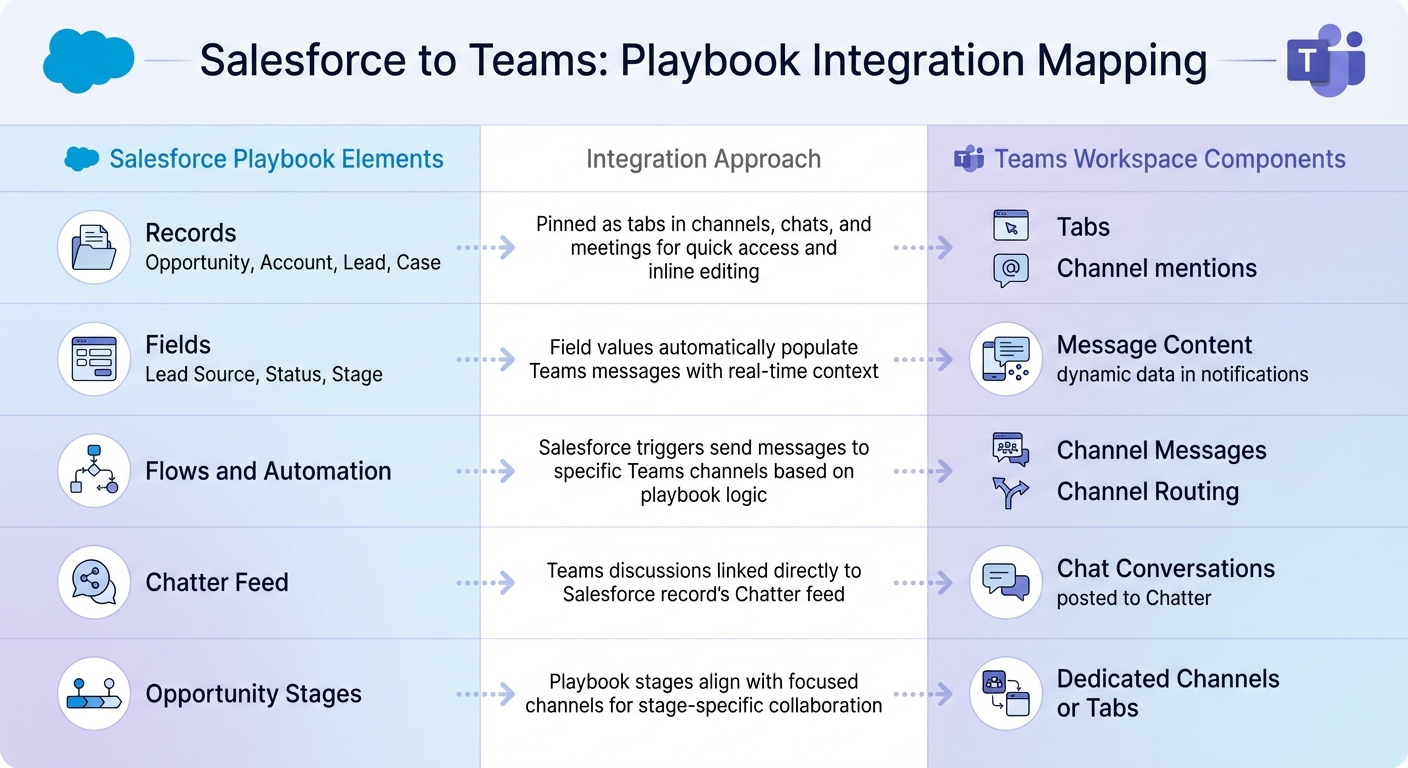
The table below highlights how Salesforce playbook elements translate into Teams workspace components, creating a unified experience:
| Salesforce Playbook Element | Teams Workspace Component | Integration Approach |
|---|---|---|
| Records (Opportunity, Account, Lead, Case) | Tabs (pinned records), Channel mentions | Salesforce records can be pinned as tabs in Teams channels, chats, and meetings for quick access and inline editing. |
| Fields (Lead Source, Status, Stage) | Message Content (dynamic data in notifications) | Field values automatically populate Teams messages, providing real-time context. |
| Flows and Automation | Channel Messages (automated notifications), Channel Routing | Salesforce triggers send messages to specific Teams channels based on playbook logic. |
| Chatter Feed | Chat Conversations (posted to Chatter) | Key Teams discussions can be linked directly to the Salesforce record’s Chatter feed. |
| Opportunity Stages | Dedicated Channels or Tabs | Different playbook stages align with focused channels for stage-specific collaboration. |
sbb-itb-95f1422
Automating Playbook-Driven Teams Workspaces with nFlow
Bringing Salesforce playbooks into Microsoft Teams can supercharge your sales process, and nFlow makes this integration seamless. Once you’ve aligned your Salesforce playbook with Teams structures, the next step is automation. Setting up workspaces manually just doesn’t cut it when you’re dealing with scale. That’s where nFlow steps in, automating the creation of Teams workspaces, channels, and conversations based on key Salesforce events and data.
Here’s how it works: nFlow keeps an eye on your Salesforce records and springs into action when specific conditions are met. For example, say a new Opportunity record is created in Salesforce. nFlow will automatically spin up a pre-configured team in Microsoft Teams for that deal. This team comes fully equipped – sales guidelines, predefined tasks, record details, and automated notifications are all ready to go. For larger Salesforce accounts, nFlow can even create dedicated teams with individual channels for each new related deal. Each workspace is stocked with the files, playbooks, and tasks your team needs to hit the ground running. Let’s dive deeper into how nFlow turns these triggers into fully functional workspaces.
Building Teams Templates from Sales Playbooks
With nFlow, you can build Teams templates that mirror the structure of your sales playbooks. These templates dictate everything: the channel layout, document libraries, file templates, and task boards that should appear in each workspace. Instead of manually setting up folders and uploading files every time a new deal starts, you configure the structure once, and nFlow handles the rest.
For instance, a typical deal room template might include channels like Discovery, Proposal, and Legal & Security, each pre-loaded with relevant folders and file templates. Think proposal documents, mutual action plans, or security questionnaires. When Salesforce triggers workspace creation, nFlow replicates the entire setup in seconds. This ensures every deal team starts with a consistent framework, following the same playbook every time.
Setting Up No-Code Rules to Create Workspaces Automatically
nFlow’s no-code tools take the automation a step further. Using a visual workflow builder, you can define when and how Teams workspaces should be created – no coding required. Simply set the Salesforce object (like Opportunity, Account, or a custom object), define the trigger conditions, and link it to the appropriate template.
For example, you could create a rule like this: “When an Opportunity with an Amount greater than $50,000 reaches the ‘Proposal’ stage, generate a deal room using the Enterprise Deal template.” You can also decide whether nFlow should create an entirely new team, add channels to an existing team, or post updates in channel conversations using adaptive cards. Plus, nFlow automatically adds relevant Salesforce users – like record owners and team members – as members or owners of the corresponding Teams workspace.
Keeping Salesforce Data Visible in Teams
To keep everyone on the same page, nFlow pins key Salesforce records as tabs in Teams and sends real-time notifications for updates like stage changes, close dates, or new tasks. These tabs display Salesforce record details through adaptive cards and other dynamic views, so your team can access CRM data directly in Teams without toggling between apps.
This feature ensures cross-functional teams stay aligned on deal progress without constant back-and-forth. On top of that, nFlow manages the lifecycle of Teams workspaces, automatically archiving, renaming, or deleting them when the associated Salesforce record is closed. This keeps your Teams environment tidy and ensures everything stays aligned with your playbook as deals move forward.
Testing, Deploying, and Managing the Integration
After setting up nFlow to automate your playbook-driven Teams workspaces, it’s essential to verify everything works smoothly before going live. Testing in a controlled environment, monitoring adoption, and keeping templates up to date are crucial steps for a seamless rollout.
Testing in Sandboxes and Pilot Workspaces
Before moving to production, test your automation in sandbox environments. Salesforce offers various sandbox types tailored to different testing needs.
When working with nFlow, connect your sandbox organization and create sample Salesforce records to validate that nFlow triggers the correct Teams workspaces. Use these records to fine-tune your triggering conditions and ensure the automation runs as expected. nFlow’s mapping feature allows you to safely refine your rules. Once you’re confident everything is working in the sandbox, proceed to production while maintaining continuous monitoring.
Tracking Adoption and Quality
After deployment, assess how well the automated workspace creation is functioning by analyzing metrics from both Salesforce and Teams. Check that qualifying deals consistently generate standardized deal rooms. Review Microsoft Teams metrics and Salesforce activity logs to confirm that updates are being made to records and that conversations are happening in the designated channels.
Look for signs of automation hiccups, like ad-hoc channels being created outside the intended structure. Such issues could mean your automation rules need adjusting or that your templates aren’t meeting users’ needs. Regular feedback from sales managers can help you identify and address these gaps early.
Managing Templates and Lifecycle
As your sales processes evolve, your Teams workspace templates should evolve too. Whether you’re adding a new discovery phase, updating proposal templates, or incorporating compliance steps, make sure to update your nFlow templates. With the no-code builder, you can easily tweak channel structures, replace file templates, or adjust task lists – all without needing a developer.
To avoid workspace clutter, use nFlow’s automated lifecycle management. Set up rules to archive Teams workspaces automatically when Salesforce opportunities close or when accounts become inactive. Conduct regular audits to ensure lifecycle policies are being followed and to keep your system organized.
Conclusion: Making Sales Playbooks Work with Salesforce and Teams
Bringing Salesforce and Microsoft Teams together transforms sales playbooks from static documents into dynamic, action-driven workspaces. With CRM data, collaboration tools, and playbook content all in one place, teams can stop wasting time searching for information and focus on closing deals. The numbers speak for themselves: companies using sales playbooks report 33% higher revenue and over 50% average win rates. But here’s the catch – those results only happen when playbooks are consistently executed for every opportunity.
This is where automation becomes a game-changer.
"The modern workforce thrives on collaboration tools like Slack, Microsoft Teams, or Google Workspace. Integrating these with Salesforce ensures insights travel to where work actually happens."
Without automation, manual setup leads to inconsistencies and missed steps. Automation bridges this gap by standardizing workspaces for every opportunity. Tools like nFlow ensure every sales process follows the same structure, freeing sales managers from chasing reps to set up workspaces or worrying about skipped steps.
By automating workspace setup, your team can focus on what really matters – connecting with customers and refining strategies. Real-time Salesforce updates in Teams keep everyone on the same page, eliminating the need for unnecessary meetings.
The benefits are undeniable: quicker deal cycles, better forecast accuracy, and scalable processes that work whether you’re handling 10 deals or 1,000. With automation driving playbook execution, the days of tool-switching and manual tasks become a thing of the past.
FAQs
How can integrating Salesforce with Microsoft Teams improve the use of sales playbooks?
By integrating Salesforce with Microsoft Teams, you can simplify your sales process by automatically setting up structured Teams workspaces for opportunities, accounts, or cases. These workspaces come equipped with everything your team needs – playbook templates, tasks, files, and relevant Salesforce records – all in one centralized location.
This setup removes the hassle of jumping between apps. With real-time updates, notifications, and Salesforce tabs embedded directly into Teams, your sales process stays consistent, organized, and up-to-date. The result? Your team can focus more on closing deals and less on managing tools.
What security steps should I take when integrating Salesforce with Microsoft Teams?
When connecting Salesforce with Microsoft Teams, it’s crucial to prioritize security just as you would with any other critical system integration. Start by ensuring data encryption – both during transit and while stored – and opt for a solution that relies on secure APIs and complies with key regulations like GDPR or HIPAA. Strengthen access controls by implementing multi-factor authentication (MFA) for all users and setting up single sign-on (SSO) through Azure AD or Salesforce. Additionally, assign the integration user an API-Only profile with the bare minimum permissions needed, adhering to the principle of least privilege.
To further tighten security, define trusted IP ranges, enforce login hour restrictions, and make it a habit to review access logs and monitor data flows regularly. Educate your team on best practices for handling sensitive information in Teams, especially when dealing with pinned Salesforce records or shared files. Lastly, ensure your data retention and backup policies are in sync with Microsoft 365 lifecycle controls, providing smooth and secure operations. By putting these measures in place, you can confidently use nFlow to streamline your sales processes while safeguarding your data.
How does nFlow simplify creating Teams workspaces using Salesforce data?
nFlow streamlines the process of transforming Salesforce data into organized Microsoft Teams workspaces. When a Salesforce object – like an opportunity, account, or case – matches your predefined criteria, nFlow automatically takes care of the following:
- Creates or links the appropriate team and channels in Microsoft Teams.
- Pre-loads the workspace with folders, file templates, tasks, and checklists tailored to your sales or service playbook.
- Pins the relevant Salesforce record as a tab within the workspace for easy access.
- Sends smart notifications in Teams to keep everyone informed and on the same page.
This ensures that every deal room, account space, or case room is consistently organized and ready to go. It empowers sales and service teams to work more efficiently without adding extra IT complexity. Plus, it seamlessly aligns with your Microsoft 365 governance policies for a smooth and hassle-free setup.
Leave a Reply